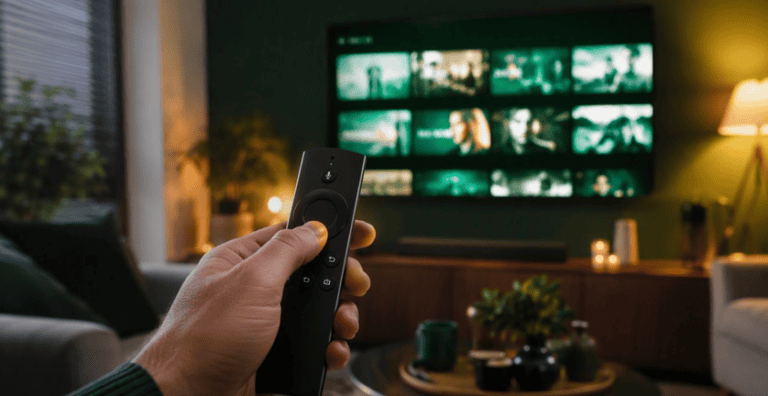
Just got an IPTV subscription and want to watch it on your Firestick? Good news: it is much easier than most people think. You do not need any technical skills, and the whole setup takes about 10 minutes from start to finish.
In this guide, we walk you through every step — from changing one small setting on your Firestick, to installing a free player app, to adding your subscription details. By the end, you will be watching your favourite channels on the big screen.
This guide works for any recent Firestick or Fire TV Stick model, on any Irish broadband connection. If you do not have a subscription yet, take a look at ÉireStream first — we are an Irish provider with licensed and free-to-air channels, and we help you with setup on WhatsApp, seven days a week.
What You Need Before You Start
Everything on this list is simple. Most of it you already have:
- An Amazon Firestick — any recent model works, including the Fire TV Stick Lite and the 4K versions.
- Wi-Fi or broadband of at least 10 Mbps — that is enough for HD. For smooth 4K, 25 Mbps or more is best. Eir, Virgin Media and Vodafone connections all work well.
- An IPTV subscription — your login details are what bring the channels into the app. See our IPTV plans and prices if you need one.
- About 10 minutes — make a cup of tea, and you will be done before it gets cold.
Step 1: Allow Apps from Unknown Sources
IPTV player apps are not always in the Amazon Appstore, so first we tell the Firestick it is allowed to install apps from other places. This is a normal setting — Amazon just asks you to confirm it.
- Turn on your TV and Firestick, and go to the home screen.
- Open Settings — the little gear icon on the right side of the screen.
- Choose My Fire TV.
- Select Developer Options. (If you do not see it, go to About, highlight your device name and press the select button seven times — this unlocks it.)
- Turn on Apps from Unknown Sources. On newer models this is called Install Unknown Apps — you will allow the Downloader app in the next step.
That is the hardest part done. Really.
Step 2: Install the Downloader App
Downloader is a small, free app on the Amazon Appstore. It lets you download and install other apps on your Firestick. Think of it as a simple helper tool — you can read more about it on the official Downloader page.
- Go back to the home screen and choose Find or the search icon.
- Type Downloader.
- Select the orange Downloader app from the results.
- Press Download (or Get) and wait a few seconds.
- Open the app and allow the permissions it asks for — it needs them to save files.
Step 3: Install Your IPTV Player App
Next you need a player app — this is the app that shows your channels and TV guide. Popular free players include TiviMate and IPTV Smarters. Both are easy to use and work very well on the Firestick.
- Open the Downloader
- In the address field, carefully type the download link for your player app. When you get your IPTV subscription with us, we send you the exact link to use — no searching, no guessing.
- Press Go and wait for the file to download.
- Press Install when the screen appears.
- Press Done, and let Downloader delete the install file — this keeps your Firestick storage free.
Your player app is now installed and sitting on your home screen, ready for your channels.
Step 4: Add Your IPTV Subscription Details
This is the moment everything comes together. When you order your IPTV subscription from us, your login details arrive by WhatsApp or email within minutes — usually about five.
- Open your new player app.
- Choose the login option your details mention — usually Xtream Codes login or playlist.
- Enter the username, password and server address exactly as we sent them. Take your time — one wrong letter is the most common mistake.
- Wait a moment. Your channels, movies and TV guide load automatically.
And that is it — you are watching IPTV on your Firestick. Take a minute to explore the app: open the TV guide to see what is on now and next, browse the movies and series section, and try switching between a few channels to see how fast they load.
If anything looks confusing, just contact us and we will walk you through it on WhatsApp, step by step. Many of our customers in Ireland are watching within 15 minutes of their first message — including the time it takes to make that cup of tea.
Quick Tips for the Best Experience
- Use 5 GHz Wi-Fi if you can. It is faster and more stable than 2.4 GHz, especially in busy homes. Sitting close to the router helps too.
- Restart your Firestick once a week. Go to Settings → My Fire TV → Restart. It takes 30 seconds and keeps everything smooth.
- Mark your favourite Irish channels. Most player apps let you star or heart channels, so your everyday favourites are always at the top.
- Test before the big match night. Check everything works in the afternoon — not five minutes before kick-off.
- Keep the Downloader app. You will use it again when your player app needs an update.
Common Problems and Easy Fixes
The picture keeps buffering
Buffering is almost always a Wi-Fi problem, not an IPTV problem. Restart your Firestick and your router first — this fixes it surprisingly often.
If you can, move the Firestick closer to the router or switch to the 5 GHz network. Also check that nobody at home is running a huge download at the same time. Remember: about 10 Mbps is needed for HD, and 25 Mbps or more for 4K.
The app crashes or freezes
Force the app to stop and open it again: Settings → Applications → Manage Installed Applications → your player app → Force Stop. If it keeps crashing, delete the app and install it fresh with Downloader — your login details still work.
Channels are not loading
First check your login details for typing mistakes. If they are correct, the cause is usually on the server side — and that is our job. Message us and we fix it right away, usually within minutes. You do not need to change anything on your Firestick.
IPTV Subscription FAQ
Is IPTV legal in Ireland?
Yes — IPTV technology itself is fully legal. What matters is that the content is licensed. ÉireStream provides licensed and free-to-air streams only, so you can watch with peace of mind.
Can I use one IPTV subscription on my TV and my phone?
A standard plan covers one screen at a time. If you want to watch on your TV and phone together, ask us about a multi-room setup on WhatsApp — it costs only a little extra.
Do I need a VPN to use IPTV in Ireland?
No. Our service works without a VPN on normal Irish broadband. Just install the app, add your login details and start watching.
Don’t Have an IPTV Subscription Yet?Get your IPTV subscription today — activation takes about 5 minutes, and we help you with the whole Firestick setup on WhatsApp. |